

In this tutorial blog post, I’m thrilled to share an exciting discovery that will revolutionize your WordPress content editing experience! If you’ve ever wanted to add a stylish Dark Mode to your WP Gutenberg Block Editor effortlessly without touching a single line of code, then this is the game-changer you’ve been waiting for.
Imagine a sleek, eye-friendly interface that boosts productivity, all without touching a single line of code! In just three simple steps, I’ll reveal the secret behind this magic – an incredible WordPress plugin called WP Admin Cleaner.
Get ready to be amazed as we uncover the secrets to effortlessly enhancing your website’s backend appearance without any technical hassle or coding knowledge. Let’s dive in and unlock the full potential of WordPress!
Example of Light & Dark Mode in WordPress Gutenberg Editor
In this section, I’ll provide you with a visual demonstration of the striking contrast between the default light mode and the captivating custom dark mode using a third-party plugin in the WordPress Gutenberg Editor.
As a WordPress No-Code Specialist, I want you to fully grasp the significance of this tutorial and how it can enhance your content editing experience inside the block editor. By exploring these two modes side by side, you’ll gain valuable insights into their impact on productivity and aesthetics.
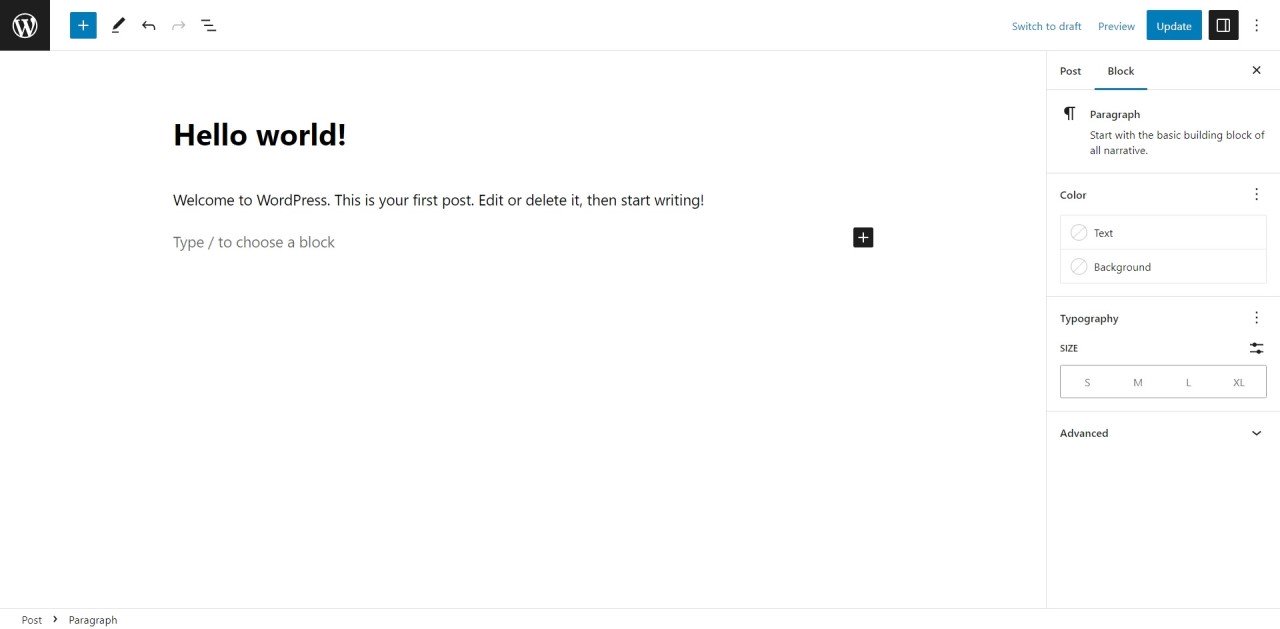
Default Light Mode in Gutenberg Block Editor
When you start using WordPress, you’ll experience the standard editing environment offered by WordPress – the default light mode. It’s a functional and straightforward interface, and while it serves its purpose well, it might not be everyone’s cup of tea (or coffee 😉).
Take a look at the image below to see how it appears:
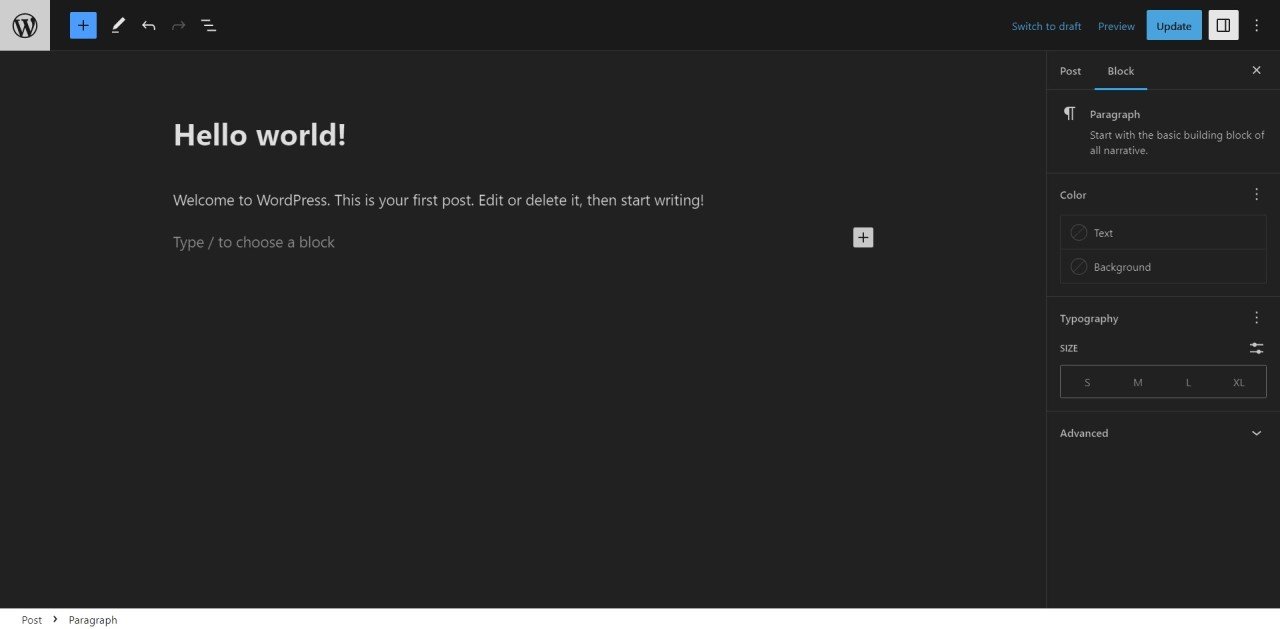
Custom Dark Mode in Gutenberg Block Editor
If you’re looking for a more captivating and elegant experience, then the dark mode comes to the rescue! This mode is perfect for those who prefer a sleek, dark-themed workspace appearance. Also, it helps you enhance your editing experience and reduce eye strain with an elegant and sophisticated ambiance.
Check out the image below to get a glimpse of this captivating mode:
Reasons to Use Dark Mode in WordPress Gutenberg Editor
Using dark mode in the Gutenberg Block Editor of WordPress offers several practical benefits that can enhance the overall editing experience and productivity.
Here are some logical reasons to consider:
- Reduces Eye Strain: Dark mode provides a softer, darker background that reduces eye strain and minimizes the contrast between the screen’s brightness and the surrounding environment. This is particularly helpful when working in low-light conditions for extended periods.
- Improved Focus: With a darker interface, distractions are minimized, allowing users to focus more on their content and less on the interface itself. This enhanced focus can lead to increased productivity and better concentration while writing content.
- Aesthetic Appeal: Dark mode adds a touch of elegance and sophistication to the editing environment. It can be visually pleasing for those who prefer a sleek and modern appearance, making the content editing process more enjoyable.
- Energy Efficiency: Dark mode utilizes less energy on devices with OLED or AMOLED screens, as these pixels emit their own light. This means that using dark mode can save battery life on tablets and laptops, especially when working on content for an extended period.
- Accessibility & Inclusivity: For users with light sensitivity or certain visual impairments, dark mode can improve readability and accessibility. It offers an alternative option for users who may find the WordPress default light mode uncomfortable to use.
- Seamless Transition: Many users are already accustomed to dark mode from using other applications and platforms. By enabling Dark Mode in the Gutenberg Editor, users can experience a more consistent and seamless transition when switching between different tools and environments.
- Personalization: Providing dark mode as an option within the Gutenberg Editor grants your content team the freedom to personalize their editing experience. Allowing such flexibility can improve user satisfaction and engagement with the workspace.
Overall, incorporating dark mode in WordPress Gutenberg Editor caters to user preferences, enhances usability, and provides a more comfortable environment for content creation and website management.
Easiest Way to Add Dark Mode to WordPress Gutenberg Editor
In this section, I’m excited to share the easiest way to add Dark Mode to your WordPress Gutenberg Editor. I’ll guide you through a step-by-step process using the powerful and user-friendly plugin, WP Admin Cleaner.
The best part? You don’t need any coding skills! With this simple yet powerful tool, you can effortlessly activate the dark mode and enjoy a more visually appealing editing experience.
Let’s dive in and uncover the magic of dark mode for your Gutenberg Editor without any technical headaches:
Install & Activate WP Admin Cleaner Plugin
Take the first step towards transforming your WordPress editing experience by installing and activating the user-friendly WP Admin Cleaner plugin. This powerful tool opens the door to a world of possibilities, offering a simple and effective way to enhance your Gutenberg Editor on WordPress effortlessly.
If you don’t know or want to learn how to install a new plugin on WordPress, then consider checking this article by WPBeginner to learn this process step by step.
Enable Dark Mode for Gutenberg Using WP Admin Cleaner
With WP Admin Cleaner at your fingertips, enabling dark mode in Gutenberg Editor becomes a breeze. With just a few clicks, you’ll immerse yourself in a sleek and visually appealing editing environment.u003cbru003eu003cbru003eFollow the below steps to wave goodbye to eye strain and distractions as you focus on creating captivating content without the need for any coding expertise.
Open the Settings Page of WP Admin Cleaner
Begin by navigating the u003cstrongu003eWordPress Admin Menuu003c/strongu003e and hovering over the u0022u003cstrongu003eToolsu003c/strongu003eu0022 menu. Look for the u0022u003cstrongu003eWP Admin Cleaneru003c/strongu003eu0022 sub-menu and u003cemu003eclick on itu003c/emu003e to access the settings page.
Turn On the Gutenberg Switch from the Dark Themes Menu
Once you’re on the u003cstrongu003eWP Admin Cleaner settings pageu003c/strongu003e, locate the u0022u003cstrongu003eDark Themesu003c/strongu003eu0022 menu and u003cemu003eclick on itu003c/emu003e. Look for the u0022u003cstrongu003eGutenbergu003c/strongu003eu0022 option and u003cemu003etoggle the switchu003c/emu003e to turn on dark mode. Don’t forget to save your changes u003cemu003eby clickingu003c/emu003e the u0022u003cstrongu003eSave Changesu003c/strongu003eu0022 button.
Turn On the Gutenberg Optimized for Oxygen Switch (Optional)
If your website is built using u003cstrongu003eu003ca href=u0022https://sync.win/oxygenbuilderu0022 target=u0022_blanku0022 rel=u0022noreferrer noopeneru0022u003eOxygen Builderu003c/au003eu003c/strongu003e, you have the option to further optimize Gutenberg for it. Just below the u003cstrongu003eGutenbergu003c/strongu003e switch, you’ll find the u0022u003cstrongu003eGutenberg optimized for Oxygenu003c/strongu003eu0022 option. u003cemu003eToggle it if applicableu003c/emu003e, and remember to save your settings u003cemu003eby hittingu003c/emu003e the u0022u003cstrongu003eSave Changesu003c/strongu003eu0022 button.
By following these straightforward steps, with the help of the WP Admin Cleaner plugin, now WordPress beginners and website owners can effortlessly incorporate dark mode into their Gutenberg Editor without any coding skills for a smoother and more enjoyable content creation process.
Conclusion
In this tutorial, we’ve discovered the power of Dark Mode in WordPress Gutenberg Editor, all achieved effortlessly with a no-code solution, WP Admin Cleaner. We’ve witnessed how dark mode reduces eye strain, boosts focus, and adds a touch of elegance to your content editing environment.
Now, here’s a question for you: Can you imagine the impact of dark mode on your productivity and the visual appeal of the website’s backend?
But wait, there’s more! There are endless possibilities with no-code tools like these that can elevate your website further. Want to learn more? Stay tuned for our upcoming blogs where we delve into more exciting no-code techniques!
Don’t keep this knowledge to yourself – share it with your fellow WordPress users. Spread the word and let others enjoy the benefits of dark mode too! And while you’re at it, drop a comment below to let us know your thoughts and experiences.
With powerful no-code tools like WP Admin Cleaner in your arsenal, the possibilities for enhancing the WordPress backend experiences are limitless.