

If you are wondering how to display your page’s modified/updated date along with or instead of the page published date in the Oxygen Templating, then in this post I will teach you how to do that within a few minutes.
You only need to know how to copy and paste the provided code snippet to your WordPress site using the Code Snippets, Advanced Scripts, or any other similar plugin.
Also, I assume that you are already comfortable with Oxygen Dynamic Data options as we are going to use that extraordinary feature to display the last modified date of the page to the Oxygen template.

Even if you don’t know how to use them properly still no worries, just follow the post carefully and I will teach you everything step by step.
Register a PHP Function To Display Last Modified Date in Oxygen Templates
The very first step is to install and activate the Code Snippets plugin, then add a new code snippet after that just copy the provided PHP code snippet you can find below and paste that to register a function to call the last modified date.
/* Display Last Modified Date in Oxygen Templates */

function syncwin_display_last_modified_date( ) {
return get_the_modified_time('F j, Y');
}
Special thanks to Matt Hias for helping me to improve the old bloated code snippet with a new optimized version.
Add The Page Modified Date Using Oxygen Dynamic Data Feature
The final step is to add a text element to your template and then select the texts and you will find an Insert Data button on top of the Oxygen editor.
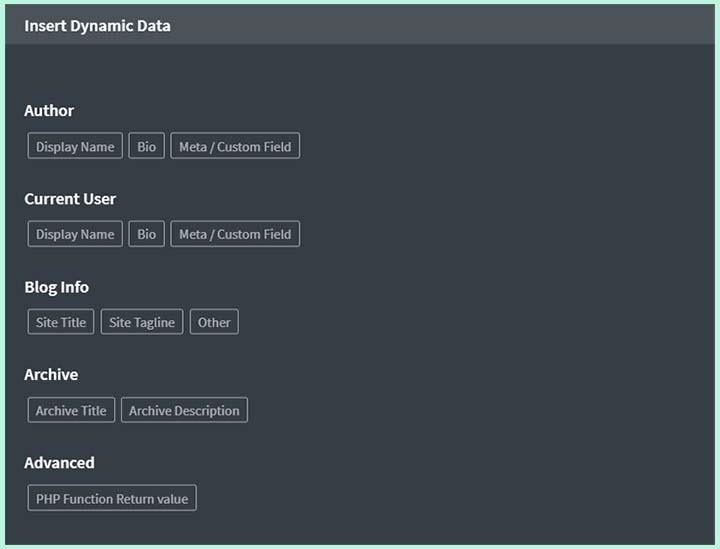
Once you click that button you will see a pop-up window called Insert Dynamic Data, now just click over to the PHP Function Return Value button under the Advanced section.
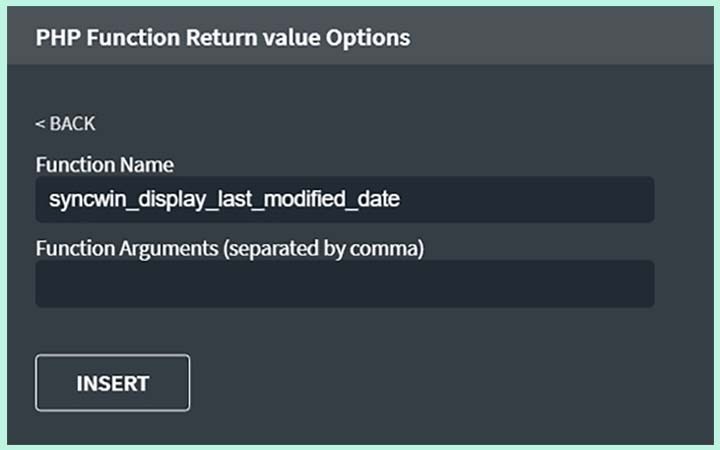
Once you click on that option you will see two fields, the first one is a Function Name and the second one is the Function Arguments field.
In the Function Name field, you need to insert “syncwin_display_last_modified_date” which is our function name that you also can see in the first line of the code snippet I provided, now leave the second Function Argument field blank as we don’t need that in this case.
Next just hit the Insert button on the same window and click the Save button from the top right corner of the Oxygen editor.
Now you can see the page Updated/Modified Date on the front-end of your Oxygen page once you reload the page.
The Navigation Should Look Like This:
> Open the Oxygen Editor
> Click the +Add Button
> Add a text element
> Double click on that particular element to select the texts
> Hit the Insert data button from the top of the page
> Select the PHP Function Return Value button under the Advanced section
> Insert “syncwin_display_last_modified_date“ in the Function Name field
> Leave the PHP Argument field blank
> Hit the Insert button
> Save the Oxygen Template using the Save button from the top right corner
Conclusion
In this knowledgebase post, I have covered how to display the page updated/modified date to your Oxygen templating using a simple PHP function and dynamic data feature of Oxygen.
I believe this guide was helpful to you so if I am right and you think the same as I do, then please share it with your community so that they also can take benefit from this post.
Also if you have to say something then feel free to leave your valuable thoughts in the comment section.
Thanks for visiting syncwin.com!