


How to Edit & Customize a WordPress Website with Elementor?

Elementor is my favorite and one of the best page builders for the wordpress platform, as it has endless possibilities in terms of features and functionalities. In this article, I am going to teach you how to edit and work on a page that is created using the Elementor page builder.

  • Published on: December 7, 2018
  • Updated on: December 7, 2018

Wasim Akram

Blog Author

WPnomy - Default Featured Image

Elementor is my favorite and one of the Best WordPress Builders for the wordpress platform, as it has endless possibilities in terms of features and functionalities.

In this article, I am going to teach you how to edit and work on a page that is created using the Elementor page builder.

Start Editing The Elementor Page

There are three ways to start editing any Elementor page, which you can find in the below screenshots.

The best way to start editing an elementor is from the front end of the page.

1. On the top bar of the page, you can see an option called Edit with Elementor, you need to hit that button to start editing the page created by Elementor.

Edit And Work On WordPress Elementor Pages

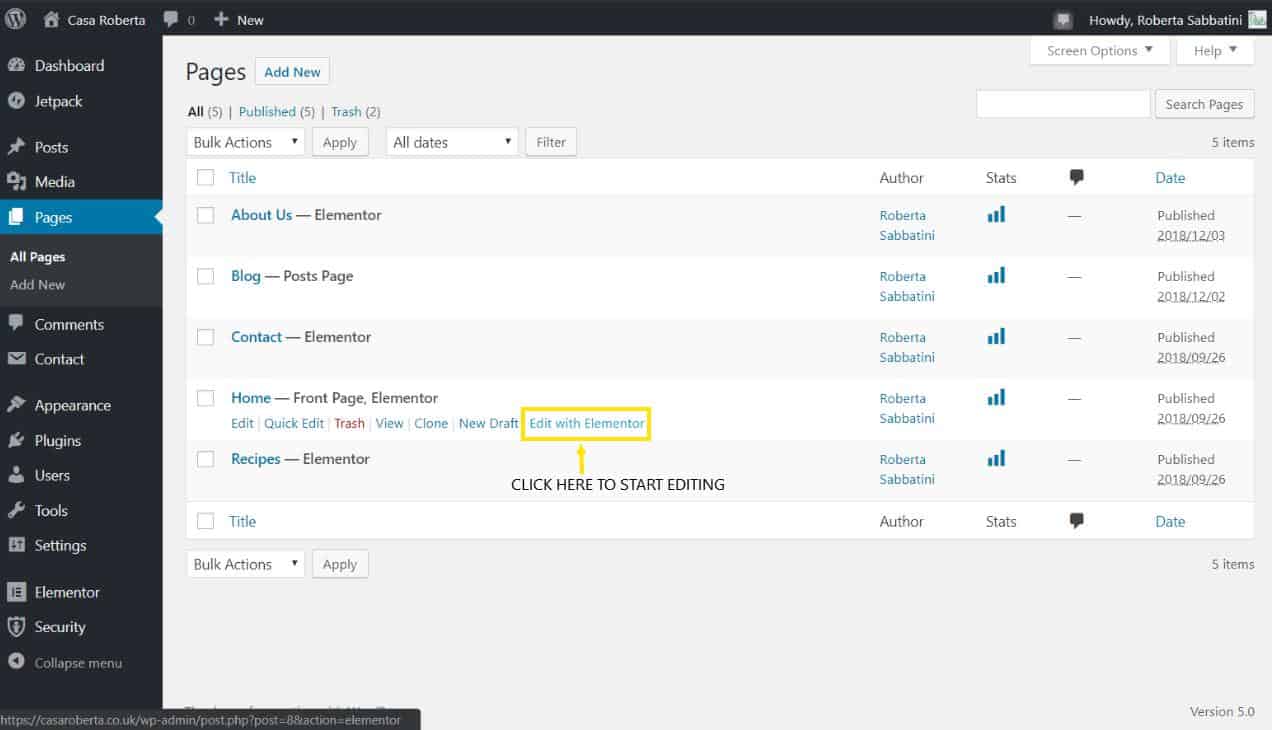
2. Also, you can start editing an Elementor page from the wordpress dashboard.

To do that go to the page section then head your mouse over the page which you want to edit, as soon as you keep your mouse on that, an option named Edit with Elementor will appear.

You can hit the link option to start editing your Elementor page.
How to Edit & Customize a WordPress Website with Elementor?

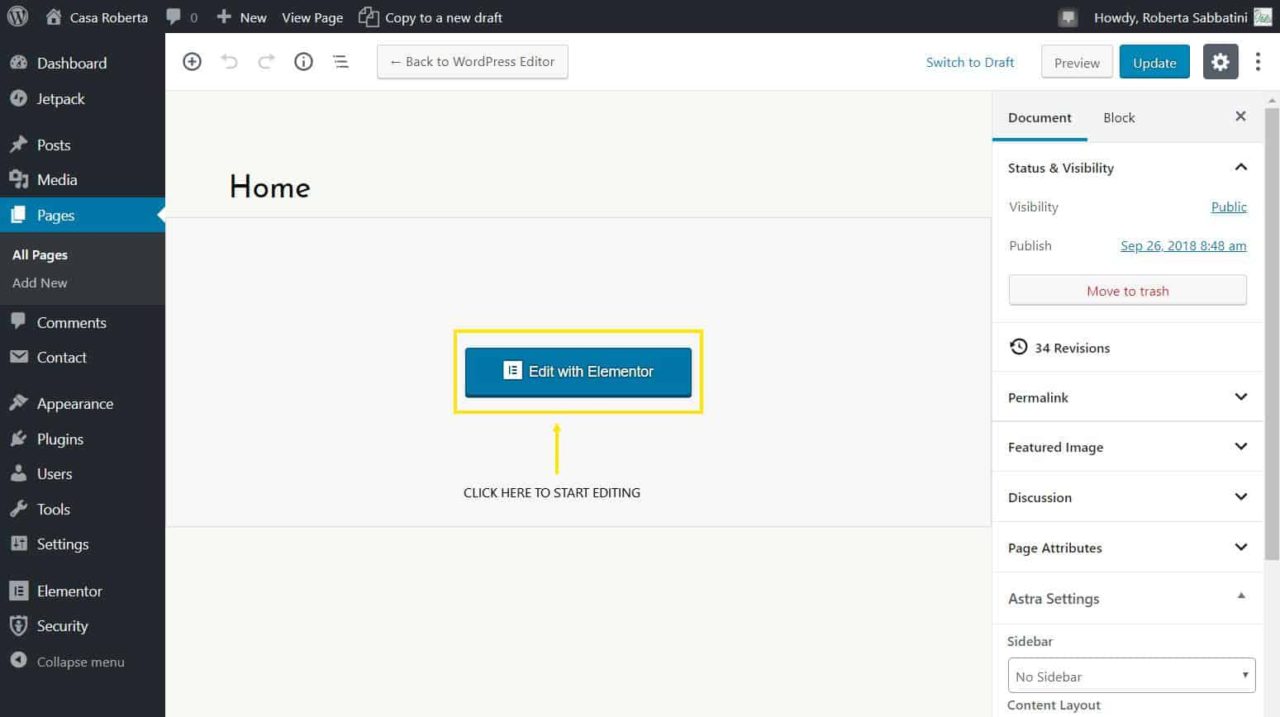
3. The last option to start editing the Elementor page is from the page editing section.

If you have skipped the above two options then you can use this option to start editing the page.

To proceed just go to the page editing window from anywhere you want and there you just need to hit the Edit with Elementor button to start editing an Elementor page.
Edit And Work On WordPress Elementor Pages

Edit The Text Of Elementor Page

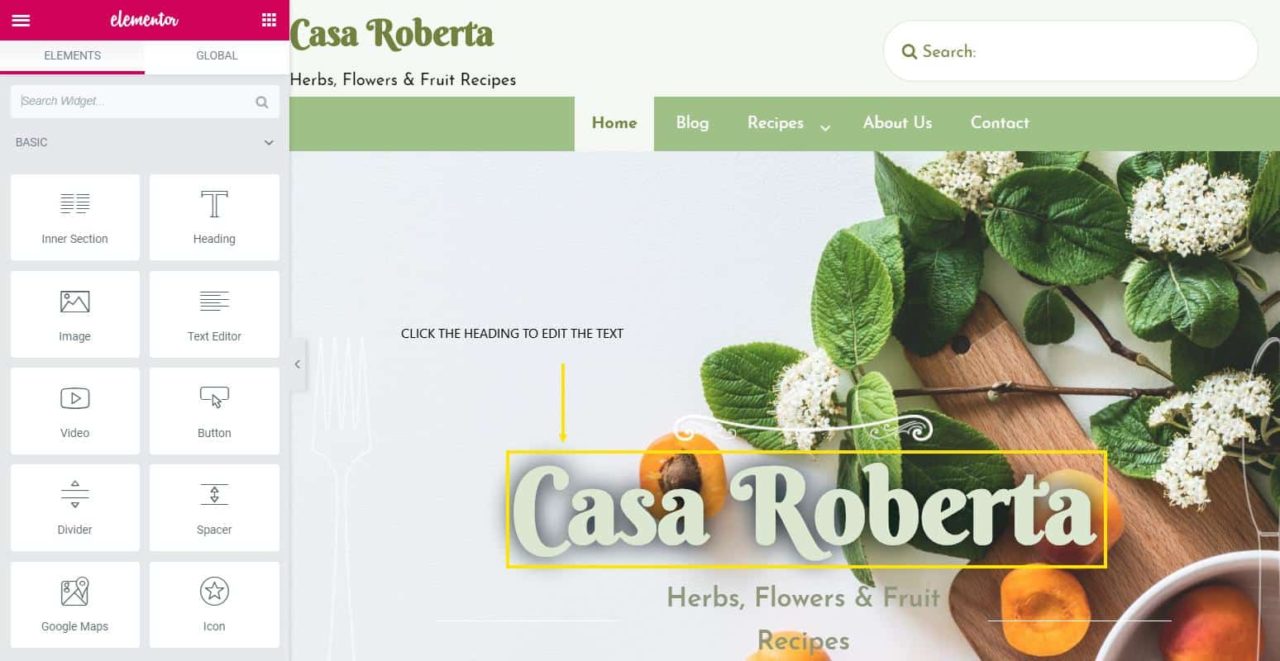
To edit any text section of an Elementor Page you just need to click over the text block.

Which can be a heading, subheading, or any paragraph.
Edit And Work On WordPress Elementor Pages

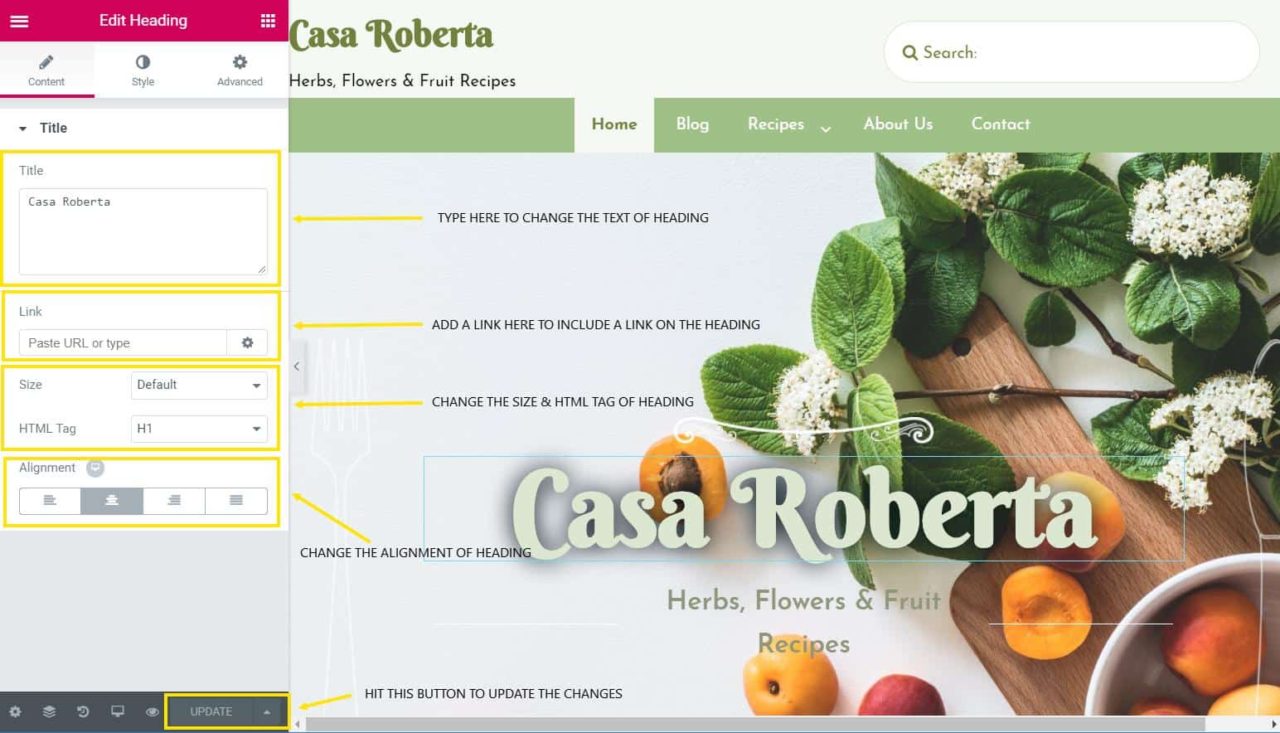
As soon as you click over the text that you want to edit on an Elementor page, a text editor will appear on the left side of the page.

Which you can use to edit the text, add a link to the text, including an HTML tag and set up the alignment as you can see in the below screenshot.
Edit And Work On WordPress Elementor Pages

Change The Image Of the Elementor Page

To change or replace the image on the Elementor page you need to click over the image that you want to change.
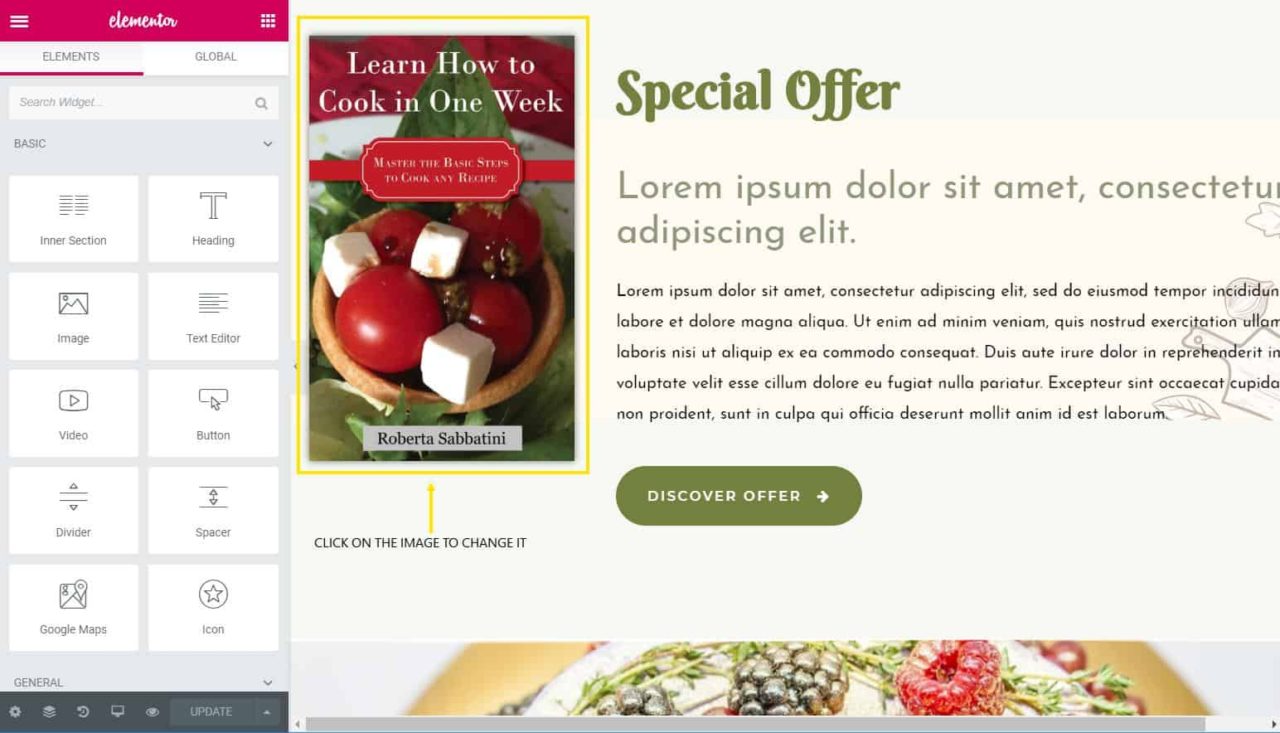
How to Edit & Customize a WordPress Website with Elementor?

As soon as you click over the image that you want to change an image editor will appear on the left side of the page.

Where you can find many options, such as changing the image, changing the image size, setting up the alignment, adding a caption, and adding a link to that image.
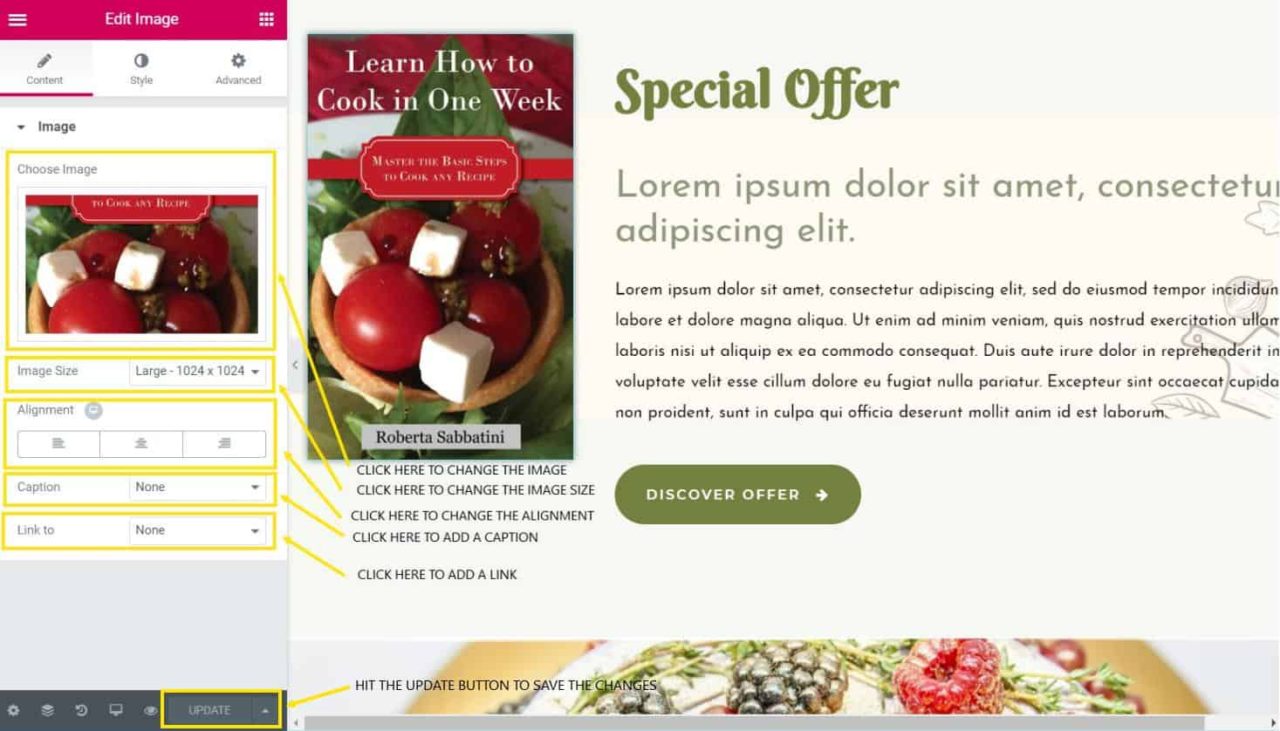
Edit And Work On WordPress Elementor Pages

A Few Things To Keep In Mind

After editing or making any changes on the page don’t forget to hit the update button in the below-left editor section.

Whenever you want to edit a text or an image only click on that text or image and don’t forget to check that on the left section content tab is selected.

Other than the content tab there are more two tabs available, one is style and the other is advanced.

It is my suggestion to only use the content tab and not to mess with the style and advanced tabs if you don’t have in-depth knowledge about Elementor.

Conclusion

Using Elementor page builder is not as complicated as other WordPress Builders because it has the live page editing option.

The best part of this is that you can immediately see the changes you made in a live view.

If you have any confusion or question regarding this article then feel free to share your feedback in the comment section below.


0 0 votes
Article Rating
Subscribe
Notify of
guest
0 Comments
Most Voted
Newest Oldest
Inline Feedbacks
View all comments

Related Posts You’ll Love

Keep exploring and sharpen your WordPress skills with more expert guides, tips, and inspiration tailored just for you. Each post is carefully crafted to help you build faster, solve real-world challenges, and get the most from WP.

Explore More Posts
WPnomy - Default Featured Image

How to Auto-Adjust Hero Section Spacing for Sticky Headers in Bricks Builder?

Learn how to automatically adjust the top spacing of your hero section to prevent content from being hidden when the sticky header is activated in Bricks Builder. This quick guide…

Read Now
WPnomy - Default Featured Image

My Top Concerns About the Bricks Builder Ecosystem as a Committed Member

A quick look at what really holds the Bricks Builder ecosystem together, and where things could use some work. Whether you’re new or experienced, understanding this helps us all move…

Read Now
WPnomy - Default Featured Image

What is the Best Theme to Use with Bricks Builder?

Many people search for the perfect theme to pair with Bricks Builder, but the real answer might not be what you expect. The best fit could be hiding in plain…

Read Now
  • Connect. Learn. Build Together.

    Become part of the WPnomy family; a vibrant, supportive community where freelancers, designers, and agencies come together to share insights, ask questions, and celebrate wins. Here, you’ll find encouragement, real-world tips, and a network of passionate WordPress users ready to help you grow.

    Join Facebook Community
    • Connect with passionate WordPress users who share your goals and challenges.
    • Access practical tips, insider tricks, and real-world solutions tailored for all skill levels.
    • Share your progress, get feedback, and celebrate your wins with a supportive network.
    • Stay updated on the latest WordPress features, tutorials, and community events.
    • Experience friendly mentorship and no-fluff guidance, making web building easier and more fun.
    Black Friday Background Image

    🖤 Wait! Don’t Miss These Black Friday Deals!

    Before you go, grab these exclusive 2025 Black Friday Deals; huge savings on top WordPress themes, powerful plugins, and reliable hosting to level up your site. These offers vanish soon, claim your deal now!

    Unlock My Black Friday Deals