

Elementor is my favorite and one of the Best WordPress Builders for the wordpress platform, as it has endless possibilities in terms of features and functionalities.
In this article, I am going to teach you how to edit and work on a page that is created using the Elementor page builder.
Start Editing The Elementor Page
There are three ways to start editing any Elementor page, which you can find in the below screenshots.
The best way to start editing an elementor is from the front end of the page.
1. On the top bar of the page, you can see an option called Edit with Elementor, you need to hit that button to start editing the page created by Elementor.

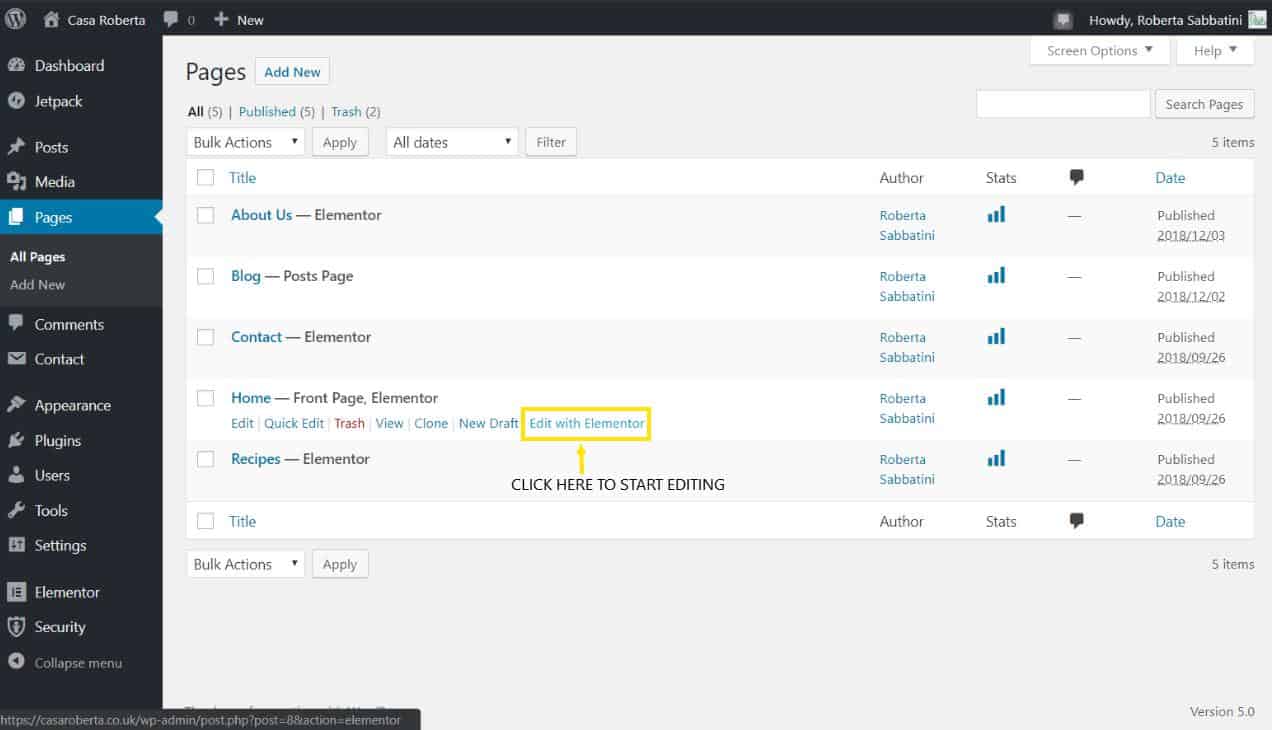
2. Also, you can start editing an Elementor page from the wordpress dashboard.
To do that go to the page section then head your mouse over the page which you want to edit, as soon as you keep your mouse on that, an option named Edit with Elementor will appear.
You can hit the link option to start editing your Elementor page.
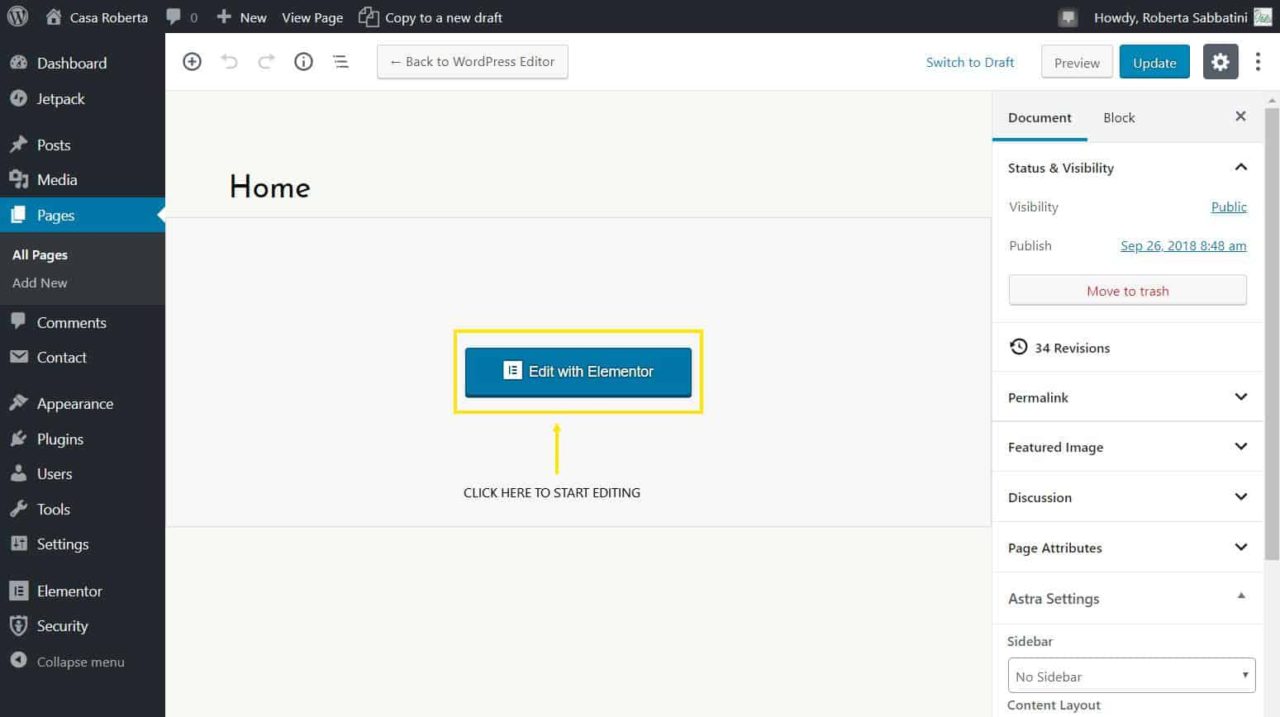
3. The last option to start editing the Elementor page is from the page editing section.
If you have skipped the above two options then you can use this option to start editing the page.
To proceed just go to the page editing window from anywhere you want and there you just need to hit the Edit with Elementor button to start editing an Elementor page.
Edit The Text Of Elementor Page
To edit any text section of an Elementor Page you just need to click over the text block.
Which can be a heading, subheading, or any paragraph.

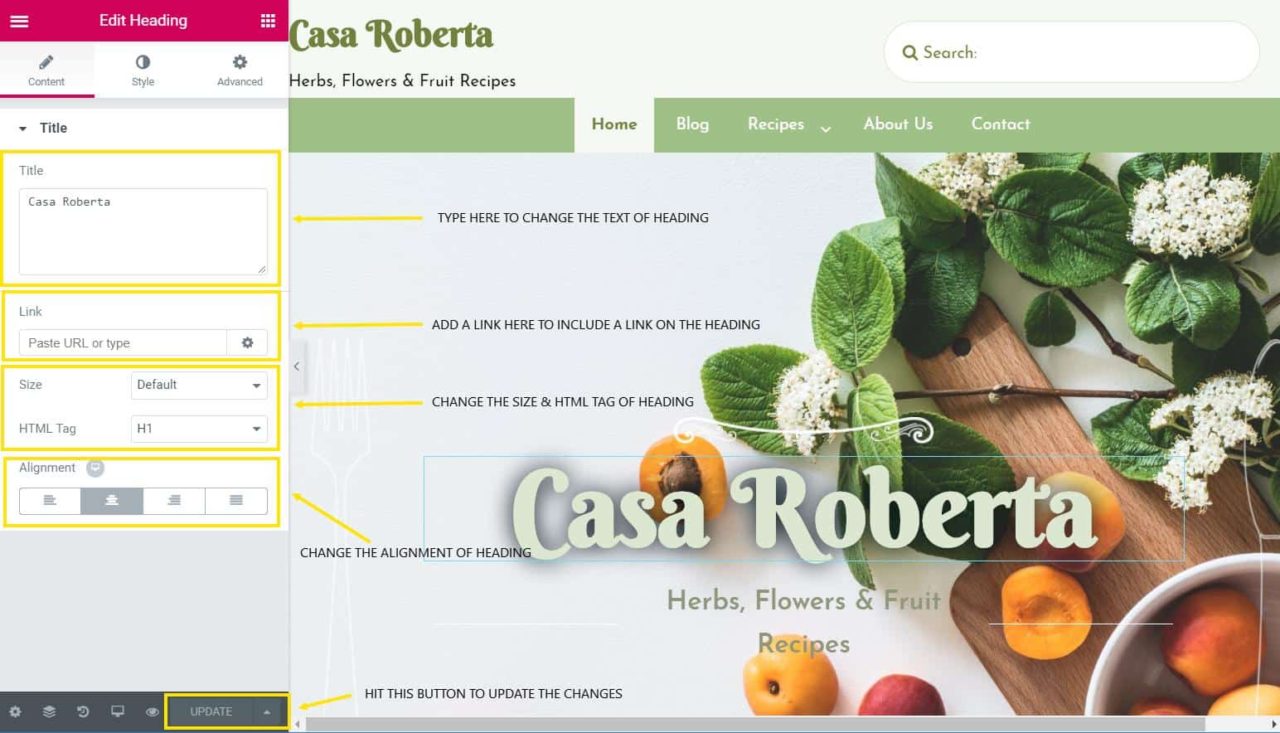
As soon as you click over the text that you want to edit on an Elementor page, a text editor will appear on the left side of the page.
Which you can use to edit the text, add a link to the text, including an HTML tag and set up the alignment as you can see in the below screenshot.
Change The Image Of the Elementor Page
To change or replace the image on the Elementor page you need to click over the image that you want to change.
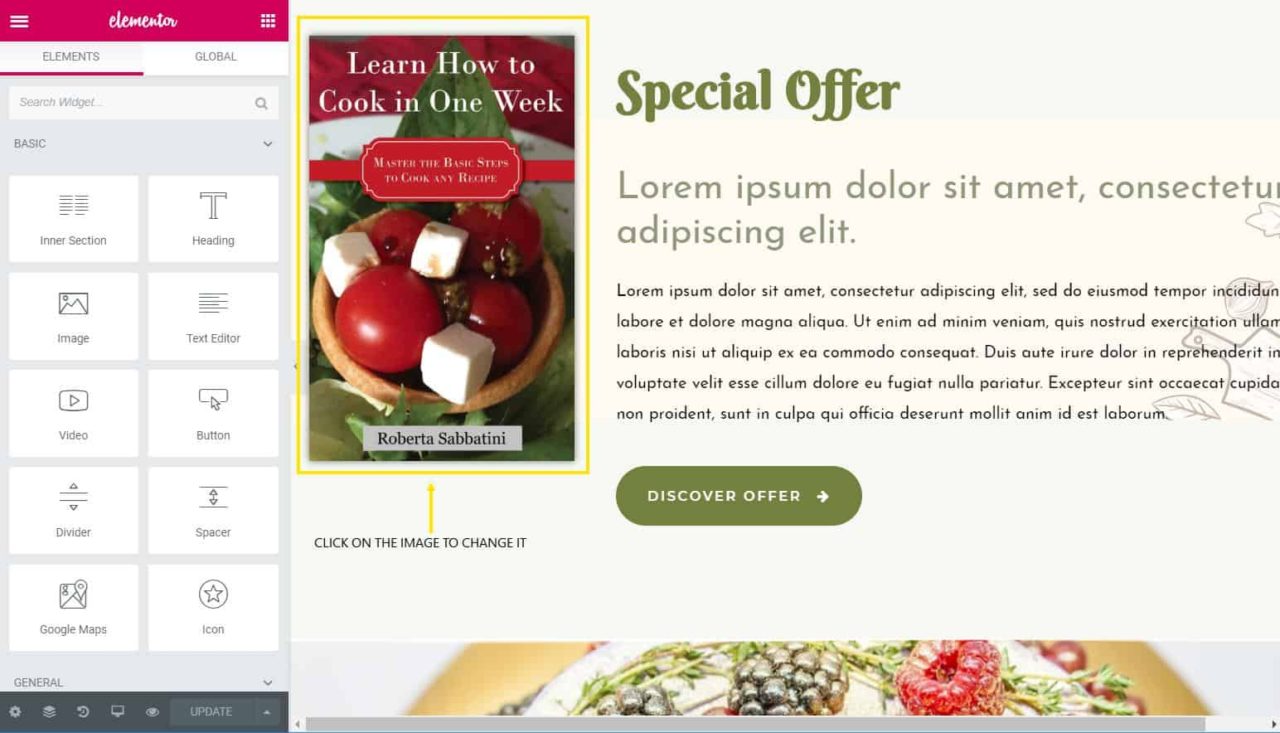
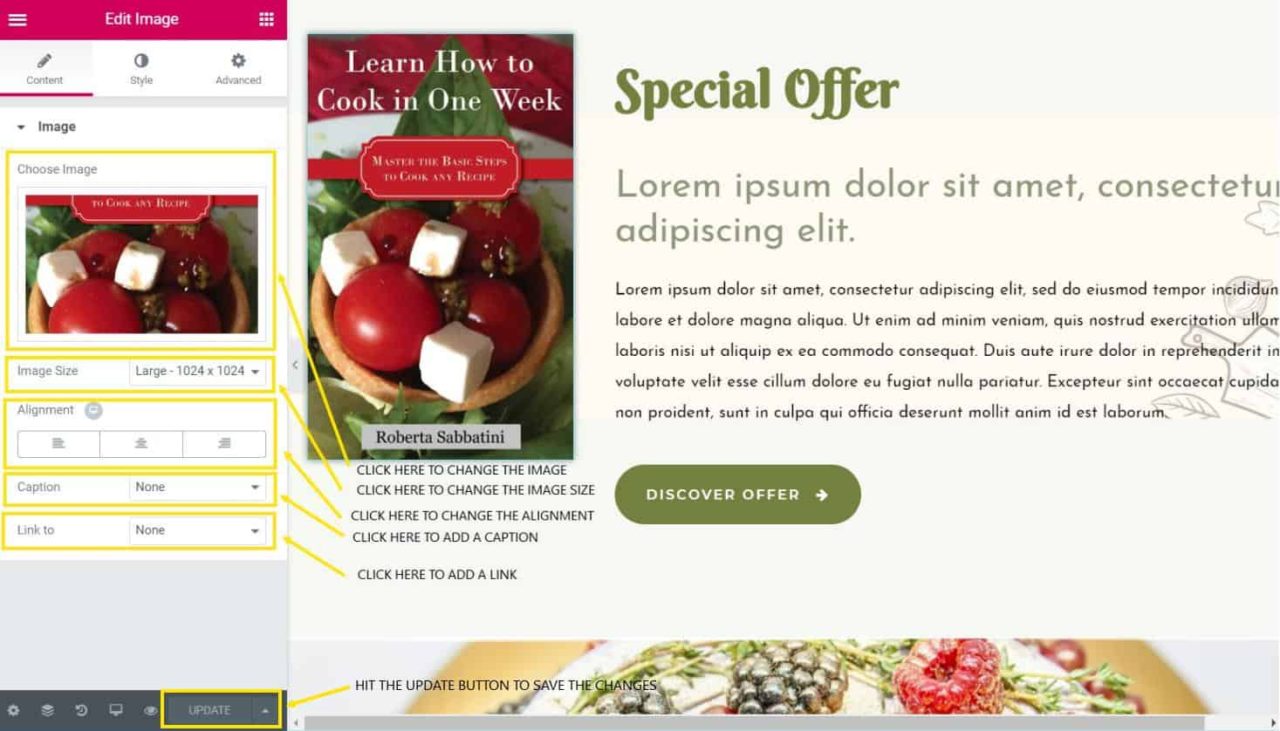
As soon as you click over the image that you want to change an image editor will appear on the left side of the page.
Where you can find many options, such as changing the image, changing the image size, setting up the alignment, adding a caption, and adding a link to that image.
A Few Things To Keep In Mind
After editing or making any changes on the page don’t forget to hit the update button in the below-left editor section.
Whenever you want to edit a text or an image only click on that text or image and don’t forget to check that on the left section content tab is selected.
Other than the content tab there are more two tabs available, one is style and the other is advanced.
It is my suggestion to only use the content tab and not to mess with the style and advanced tabs if you don’t have in-depth knowledge about Elementor.
Conclusion
Using Elementor page builder is not as complicated as other WordPress Builders because it has the live page editing option.
The best part of this is that you can immediately see the changes you made in a live view.
If you have any confusion or question regarding this article then feel free to share your feedback in the comment section below.