


If you’re a web professional catering to clients using WordPress, you know the importance of a seamless experience. But what about those essential plugins that clients shouldn’t tamper with? I faced this challenge too.
Imagine, you build a fantastic website for a client, but they accidentally removed a crucial plugin like your WordPress Page Builder that breaks the entire site layout, causing so much chaos! That’s where I found the perfect solution.
In this tutorial, I’ll walk you through a game-changing, step-by-step process using a no-code solution called WP Admin Cleaner. With this tool, you can effortlessly hide specific plugins from the plugin page inside WordPress Admin Dashboard.
Whether it’s for security reasons, protecting important functionalities, or simply decluttering the admin dashboard, you’ll have full control. Tailored to WordPress beginners and web professionals, this article will empower you to manage your plugins discreetly, without a single line of code.
So, let’s dive in and unlock the power to customize your WordPress admin panel with ease. Read on and discover the peace of mind that comes from keeping your vital plugins safe from prying eyes.
Possibilities of Controlling Plugin Visibility with This Method
In this section, I’m excited to unveil the potential of controlling plugin visibility with this method. As a WordPress and No-Code Specialist, I’ve harnessed the power of no-code tools to simplify website and business management. I’ll walk you through what this method can achieve and its limitations.
- Can Hide for Every Admin: Using this method, WordPress admin users can hide plugins from the admin dashboard. This is ideal when you have multiple admins, and you want to restrict access to certain plugins. For instance, you can hide sensitive SEO plugins to avoid accidental changes by other admins.
- Can’t Hide for Super Admins: Unfortunately, even if you’re the super admin, you cannot hide plugins from the WordPress admin dashboard for yourself. As the super admin, you have access to all plugins by default. However, this shouldn’t be a major concern since you can still hide them for other admins using the method.
- Can‘t Hide for Specific Users: It’s important to note that you cannot selectively hide plugins for specific admin users while keeping them visible to others. When you use this method to hide plugins, it applies the setting globally for all admins. So, if you hide a plugin, it will be hidden for everyone, not just a specific user.
Examples of Visible & Hidden WordPress Plugins from Dashboard
In this section, I’ll provide you with visual examples that illustrate the crucial difference between visible and hidden plugins in the WordPress admin panel.
I understand the importance of clarity when managing plugins. Through these examples, you’ll gain a clear understanding of how hiding certain plugins can declutter your admin dashboard and empower you to control access more efficiently.
Visible WordPress Plugins from Admin Dashboard
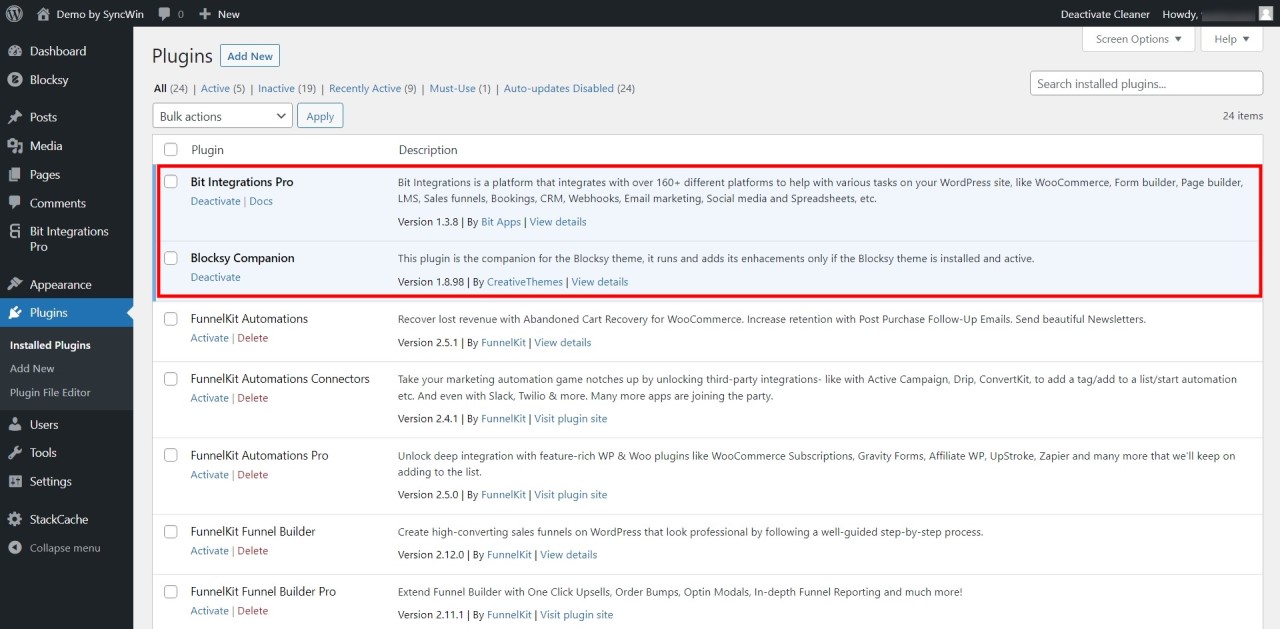
In this section, let’s explore the visible WordPress plugins within the admin dashboard. I understand the potential risks associated with open access. When your clients or other admin users have visibility to all plugins, accidental deletions could lead to major site issues.
See the below screenshot, in this example of how all the plugins including Bit Integrations and Blocksy Companion are visible in the list of plugins.
Hidden WordPress Plugins from Admin Dashboard
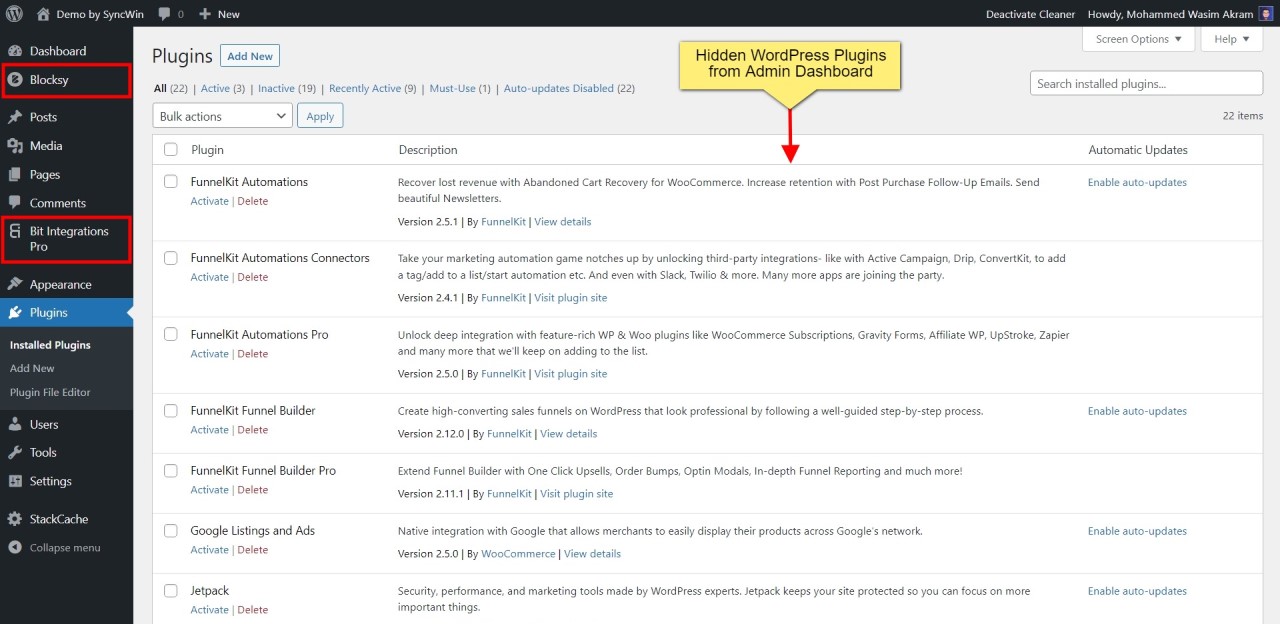
In this section, we’ll explore the power of hidden WordPress plugins in the admin panel. I’ve learned the importance of safeguarding crucial plugins from accidental changes by clients or other admin users. When these essential plugins are hidden, you gain greater control over your website’s security and functionality.
Now check the below screenshot, both the above-mentioned plugins are now hidden using my method for all the admins, but the related menu items are still visible in the admin sidebar just like the earlier image.
However, if you also want to hide the admin menu items for specific user roles from the WordPress backend, then you must check out our dedicated step-by-step step tutorial on this topic.
Reasons to Hide WordPress Plugins from Admin Dashboard
In this section, I’ll shed light on the multitude of reasons why hiding WordPress plugins from the admin dashboard is a smart move. I’ve discovered various compelling reasons why website administrators, like you, opt for this strategy.
Let’s delve into these common reasons that’ll empower you to optimize your WordPress experience:
- Simplified User Interface: When your website has many plugins, hiding some from the admin dashboard declutters the interface, making it easier to focus on essential tools without distractions.
- Client or User Restrictions: For websites managed by multiple users or clients, hiding certain plugins allows you to control what they can modify, safeguarding vital functionalities and preventing accidental disruptions.
- Prevent Unauthorized Access: Hiding plugins that grant access to sensitive areas of your website or server ensures unauthorized users can’t tamper with critical settings, enhancing overall security.
- Safeguard Proprietary Information: If you’ve developed custom plugins or use exclusive solutions, hiding them protects your intellectual property, reducing the risk of plagiarism or unauthorized duplication.
With these reasons in mind, strategically hiding WordPress plugins empowers you to enhance security, maintain user-friendly interfaces, and preserve the integrity of your online businesses.
Easiest Way to Hide WordPress Plugins from Admin Dashboard
In this section, I’m thrilled to reveal the no-code method that allows you to hide WordPress plugins from the admin dashboard effortlessly. With this game-changing approach, you’ll have the power to customize your dashboard without any coding skills.
However, if you want a low-code solution to achieve this, then check out our other article that teaches you how to hide plugins using a code snippet. This low-code method only has two problems, the first one is you have to get your hands dirty with code and the second one is the plugins are hidden for everyone including you.
Now, let’s come back to the main topic of how to do it with zero-code, and let’s get started.
Install & Activate WP Admin Cleaner Plugin
Take the first step towards hiding your WordPress plugins from the admin dashboard by installing and activating the WP Admin Cleaner plugin. This game-changing tool opens the door to a world of possibilities, offering a simple yet effective way to hide plugins for everyone effortlessly.
If you are not sure or just want to learn how to install and activate a new plugin on WordPress, then consider checking this step-by-step tutorial by WPBeginner to learn this process.
Hide WordPress Plugins with WP Admin Cleaner
In this section, I’ll guide you through the step-by-step process of hiding WordPress plugins from the admin panel with ease. With the WP Admin Cleaner plugin, you can customize your admin dashboard without a single line of code. Let’s dive in and explore this powerful process that empowers you to control your plugins effortlessly.
Open the Settings Page of WP Admin Cleaner
Start by accessing the u0022u003cstrongu003eToolsu003c/strongu003eu0022 menu in the u003cstrongu003eWordPress Admin Sidebar Menuu003c/strongu003e. Click on u0022u003cstrongu003eWP Admin Cleaneru003c/strongu003eu0022 to access the settings page where you can control the visibility of your WordPress Plugins.
Select the Hide Plugins u0026amp; Hide the WordPress Plugins
Once on the u003cstrongu003eWP Admin Cleaner Settings Pageu003c/strongu003e, locate the u0022u003cstrongu003eHide Pluginsu003c/strongu003eu0022 option and click on it. A dedicated page will open, presenting two choices: u0022u003cstrongu003eSelect/Unselect Allu003c/strongu003eu0022 to easily choose all the plugins, or manually check the u0022u003cstrongu003eCheckboxes with Plugin Namesu003c/strongu003eu0022 you want to hide. After making your selections, click u0022u003cstrongu003eSave Changesu003c/strongu003eu0022 to complete the process.
With just a few clicks, WordPress beginners and web professionals can effectively manage their plugin visibility, ensuring a clutter-free admin dashboard and better control over who can access and modify essential plugins.
WP Admin Cleaner simplifies the process, granting you seamless customization without any coding hassle. So, take charge of your website’s backend and experience the freedom to tailor your WordPress experience like never before!
Conclusion
In this tutorial, we discovered a powerful solution to hide WordPress plugins from the admin dashboard effortlessly using the no-code tool, WP Admin Cleaner. With just a few clicks, we can simplify our admin dashboard, protect sensitive functionalities, and manage user access effectively.
Now, here’s a question for you: How will you utilize this newfound knowledge to enhance your website’s security and user experience?
Imagine the peace of mind you’ll have after knowing your vital plugins are shielded from accidental changes. But that’s not all! There’s, even more, to explore in the world of WordPress with no-code tools like WP Admin Cleaner. For example, you can easily activate dark mode on your Gutenberg editor with just 2 clicks.
Now, I want to hear from you! Did this tutorial help you enhance your WordPress experience? Share your success stories and questions in the comments below. Let’s keep the conversation going!
And don’t forget to spread the knowledge—share this tutorial with fellow WordPress beginners, web professionals, and website owners.
Remember, the journey of learning and growing as WordPress enthusiasts never stops. Stay curious, keep experimenting, and embrace the endless possibilities that WordPress and no-code tools offer.